

Update DocProperty and DocVariable fields across a folder without Microsoft Word
BatchDocProcessor updates the fields that show document properties and variables in every Microsoft Word document in a folder, on your Windows PC. It writes each field's current value into the file itself, without starting Microsoft Word. The new value then shows in Microsoft Word and in previews.
Updated
In Microsoft Word, with a macro, or in one run.
DocProperty and DocVariable fields put a document's own values into its text, headers and footers. But a field keeps the text it last showed until something updates it.
In Microsoft Word
- Open a document, press Ctrl+A, then F9, to update the fields in the text. Save, close, and open the next one.
- F9 updates every selected field, page numbers and dates included.
- A field that pulls in another file can stop at a security notice. Nothing records which documents were updated.
A macro
- It has to start Microsoft Word and open every document in turn.
- It has to visit the text, headers, footers, footnotes, endnotes and comments of each document.
- Updating only the property fields, and leaving page numbers, dates and locked fields as they are, takes extra code.
BatchDocProcessor
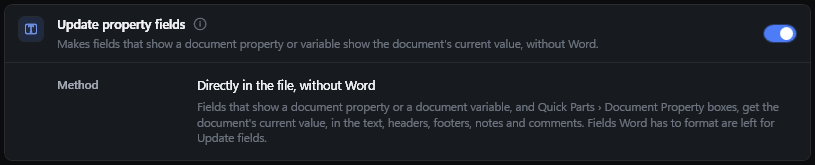
- Writes the current value into each property field in the file, without starting Microsoft Word.
- Covers DocProperty and DocVariable fields, the Title, Subject, Keywords and Comments fields, and Document Property boxes.
- Leaves page numbers and dates alone. A document that can't be edited safely is restored and reported.
How do I update property fields across a folder without Microsoft Word?
- 1
Put the fields in your documents
In Microsoft Word, choose Insert › Quick Parts › Field, then DocProperty or DocVariable, and pick or type the name. Insert › Quick Parts › Document Property adds a box instead.
- 2
Give the documents their values
Use Values from a spreadsheet when each document needs its own value from Microsoft Excel. Use Set document properties when every document gets the same one.
- 3
Turn on Update property fields
Tick the step on the Steps page. It has no settings, and it needs neither a template nor Microsoft Word. In the recommended run order it comes after the steps that change the values.
- 4
Start the run
The step edits each document file itself. Microsoft Word doesn't open for it, so a Microsoft Word dialog can't stop it.
- 5
Check the results
Open a few finished documents: the fields show the new values. Then filter the report by Warnings. It lists documents with fields left for Microsoft Word, and fields that name a property the document doesn't have.
Which fields update, and where they are found
Microsoft Word updates fields in headers and footers, and Document Property boxes, when it opens a document, but not fields in the body text. This step writes the value into the fields below, wherever they are.
- Where it works
- The body text, headers, footers, footnotes, endnotes and comments, in every section.
- DocProperty fields
- Fields that name a custom property, or one of the standard ones: Title, Subject, Author, Keywords, Category, Comments, Company and Manager.
- DocVariable fields
- Fields that show a document variable.
- Document Property boxes
- Boxes inserted with Insert › Quick Parts › Document Property, where possible.
- Standard summary fields
- TITLE, SUBJECT, KEYWORDS and COMMENTS fields.
- What stays as it is
- Page numbers, page counts, today's date and other fields, and any field locked in Microsoft Word with Ctrl+F11.
- Formatted fields
- Fields that need formatting from Microsoft Word, such as dates or numbers with a format setting, keep their old text. Add Update fields after this step and Microsoft Word fills them in. Without it, the report gives the document a warning.
Without Microsoft Word
- No Microsoft Word window
- The step works on the document file and doesn't start Microsoft Word. Steps that need it, such as Update fields, still start it.
- No dialogs in the way
- It doesn't depend on Microsoft Word, so a Microsoft Word dialog can't stop it.
- In a scheduled task
- Runs in a scheduled task, because it doesn't start Microsoft Word. Save the job as a preset and run it with bdp-cli.exe from Windows Task Scheduler.
- A property the document lacks
- A field that names a property or variable the document doesn't have keeps its text. The report gives the document a warning, so you can fix the name.
Good to know
- It doesn't update page numbers or tables of contents. Update fields does that, with Microsoft Word.
- A field whose property is empty keeps its old text, without a warning.
- It pairs with Values from a spreadsheet and Set document properties, which store the values it shows.
- By default, the documents are copied to an output folder and only the copies are edited.
Questions about updating property fields
Do I need Microsoft Word?
Not for most jobs. 16 of BatchDocProcessor's 20 steps edit the file directly. Four always need it: Update fields, Remove hidden text, Convert to PDF and Run macros. Two can use it if you choose: Replace styles and Convert .doc to .docx.
These use the desktop version of Microsoft Word for Windows on the same PC. No minimum version is listed.
Which steps need Microsoft WordWhich fields does Update property fields change?
DocProperty and DocVariable fields, Title, Subject, Keywords and Comments fields, and Document Property content control boxes. It works in the body text, headers, footers, footnotes, endnotes and comments, while leaving page numbers, dates and locked fields alone.
It writes the current value into these fields without starting Microsoft Word, so the document shows it straight away, in Microsoft Word and in previews. Fields that Microsoft Word has to format, such as a date, are left for Update fields.
Are my documents uploaded anywhere?
No. BatchDocProcessor processes documents locally. The app contacts our servers only to activate, renew or release a license, to count the free trial, and, if enabled, to check for updates. Run reports store no document content.
Privacy noticeWhat happens when a document fails?
It is restored to its original state and left where it is, and the run continues. The report gives the reason and a hint. Files open elsewhere, read-only or protected by a password are reported as failed.
Why does Microsoft Word show old values in some fields?
A field keeps the text it last showed. Microsoft Word updates fields in headers and footers, and Document Property boxes, when it opens a document, but not fields in the body text. So a field in the text can show an old value after the property has changed. Update property fields writes the current value into those fields too.
What happens if a field name has a typo?
The field keeps the text it had, and the report gives the document a warning. Check the name in the field, or give the document that property.
Can I run Update property fields on its own?
Yes. If the properties are already set, or your new header template already has DocProperty fields, turn on only this step. It brings the text of every covered field up to date.
Other jobs for a whole folder
- Rebrand every document in one run
- Change the headers and footers in every document
- Find and replace text in every document
- Convert old .doc files to .docx
- Give each document its own values from a spreadsheet
- Replace a logo in every document
- Remove metadata, comments and tracked changes
- Update links and paths after a server move
- All use cases
Try it on ten documents with property fields.
Your originals stay unchanged by default, and the report shows what happened to each file.
- Every feature, for 7 days or 50 documents, whichever comes first.
- No license key, account or card needed. Needs an internet connection.
- When it ends, the editing steps lock. Nothing is charged or renewed.
- Processed on your PC. Your documents aren’t uploaded.