

Update hyperlinks and paths in multiple Microsoft Word documents after a server move
BatchDocProcessor repoints the links and paths inside every Microsoft Word document in a folder after a file-server or Microsoft SharePoint move, in one run on your Windows PC. Your rules change where links point, not the text people see, across ten kinds of link target, from hyperlinks to attached templates and mail-merge data sources.
Updated
In Microsoft Word, with a macro, or in one run.
A migration tool moves the files. The paths stored inside the documents still point to the old server, and nobody notices until a link or a template fails to open.
In Microsoft Word
- Open each document, fix its links in Edit Links to Files, then press Alt+F9 to find paths in field codes.
- Hyperlinks, the attached template and a mail-merge data source each live in a different dialog.
- No list of which documents still point to the old server.
A macro
- Someone has to write it, test it and keep it working.
- It has to read HYPERLINK, INCLUDETEXT, INCLUDEPICTURE, LINK and RD fields, a chart's linked workbook, the attached template and the mail-merge settings, everywhere in the document.
- Putting back a document it breaks, and counting what it changed, are extra work.
BatchDocProcessor
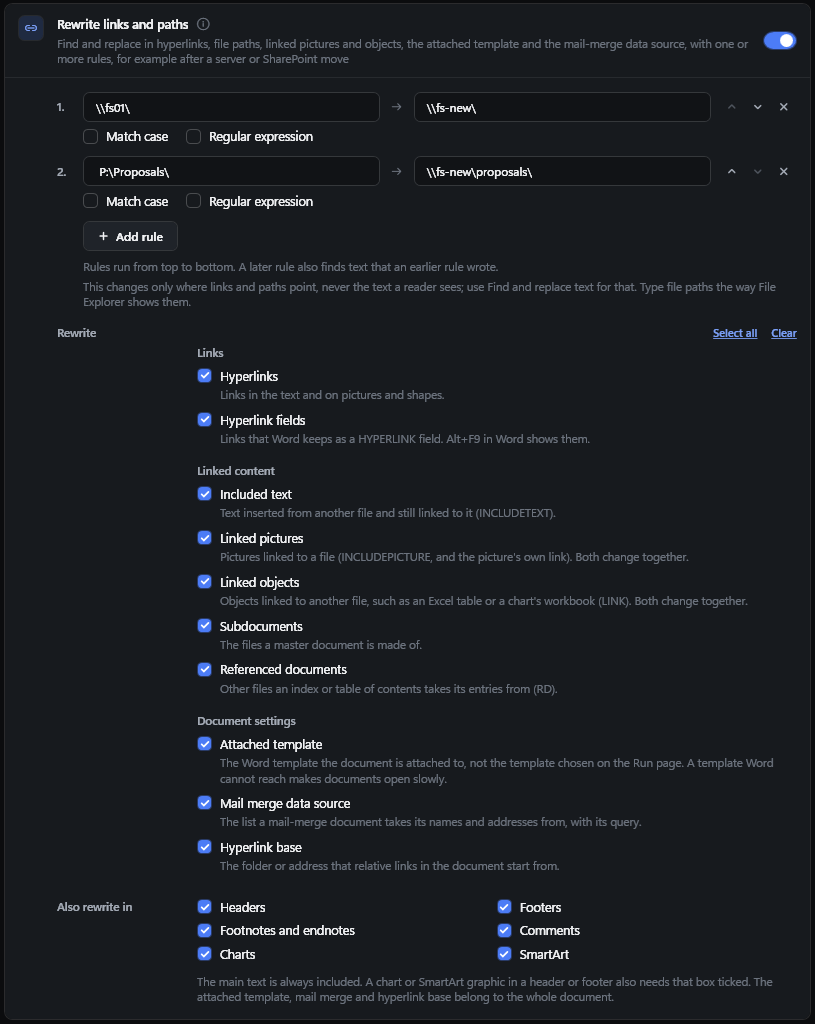
- Write the rules once, such as \\fs01\ → \\fs-new\, and save them as a preset.
- Rewrites ten kinds of link target in the body, headers, footers, notes, comments, charts and SmartArt.
- Edits copies by default. Each document gets a report line with the number of links rewritten.
How do I update the links in every document after a server move?
- 1
Write the rules
Each rule finds part of a link's target and replaces it. One rule such as
\\fs01\→\\fs-new\can cover a whole share. - 2
Choose the kinds of link
A new step has all ten kinds ticked, and also looks in comments, charts and SmartArt. Untick anything you want left alone.
- 3
Bring old .doc files along
If the share still holds Microsoft Word 97–2003 files, turn on Convert .doc to .docx in the same job. They are converted first, then their links are rewritten. The .doc files themselves stay untouched.
- 4
Test on a few documents
Copy three or four typical documents into a test folder and run the job. From the command line, a dry run checks the job without changing anything.
- 5
Run the folder, then follow some links
The report counts the links rewritten in each document. Open a few results and follow their links before the old server is switched off.
The 10 kinds of link target
Grouped as the step shows them in the app. Each kind can be ticked on its own.
Links
- Hyperlinks
- Links in the text and on pictures and shapes.
- Hyperlink fields
- Links kept as a HYPERLINK field. Alt+F9 in Microsoft Word shows them.
Linked content
- Included text
- Text inserted from another file and still linked to it (INCLUDETEXT).
- Linked pictures
- Pictures linked to a file: INCLUDEPICTURE and the picture's own link change together.
- Linked objects
- Objects linked to another file, such as a Microsoft Excel table or a chart's workbook (LINK).
- Subdocuments
- The files a master document is made of.
- Referenced documents
- Other files an index or table of contents takes its entries from (RD).
Document settings
- Attached template
- The template the document is attached to. One Microsoft Word can no longer reach makes documents open slowly.
- Mail merge data source
- The list a mail-merge document takes its names and addresses from, with its query.
- Hyperlink base
- The folder or address that relative links in the document start from.
What stays as it is
- The text people see. If the old server name is also typed in the text, add a rule to Find and replace text in the same job.
- Links to another place in the same document, and paths that other fields put together.
- Embedded objects, which hold a copy of their file rather than a link to it.
- Fields inside tracked changes. Accept or reject the changes first.
- A rewritten template path can be set back by Update fields or Run macros. Run those in a separate job.
Questions about links after a server move
Can I run jobs from the command line or Windows Task Scheduler?
Yes. bdp-cli.exe runs a saved preset, or a job file exported from one, without opening the app. You can override the folders, templates, subfolders and name filter. It writes the same report as the app, and returns an exit code from a fixed set, 0 to 9, so a script or scheduler can act on the result.
Every option and exit codeHow do I test a job without changing anything?
Run it with --dry-run. The job is checked and the documents are counted, but nothing is changed, and it doesn't count against the trial.
Does it check that the new paths exist?
No. The rules are applied as written. Open a few finished documents and follow some links before the old server is retired.
Does it change the text of a link?
No, only where the link points. A link that reads "Proposal" still reads "Proposal". To change a path that is typed out in the text, use Find and replace text in the same job.
Why do documents open slowly after the move?
Often the attached template still points to the old server, and Microsoft Word waits for it. Rewrite the attached template's path with the other links, or clear it with Clean up metadata.
Remove metadata, comments and tracked changesOther jobs for a whole folder
- Rebrand every document in one run
- Change the headers and footers in every document
- Find and replace text in every document
- Convert old .doc files to .docx
- Give each document its own values from a spreadsheet
- Update property fields without Microsoft Word
- Replace a logo in every document
- Remove metadata, comments and tracked changes
- All use cases
Try it on ten of your own documents.
Your originals stay unchanged by default, and the report shows what happened to each file.
- Every feature, for 7 days or 50 documents, whichever comes first.
- No license key, account or card needed. Needs an internet connection.
- When it ends, the editing steps lock. Nothing is charged or renewed.
- Processed on your PC. Your documents aren’t uploaded.