

Remove metadata, comments and tracked changes from multiple Microsoft Word documents
BatchDocProcessor removes metadata, comments and tracked changes from every Microsoft Word document in a folder with one saved job, on your Windows PC. You choose which of 25 items go, such as author, company and the template path. If a document can't be cleaned safely, it is put back as it was and listed in the report.
Updated
The Supplier shall deliver the final report within 30 days by June 30. Fees are set out in the revised Schedule B.
The Supplier shall deliver the final report by June 30. Fees are set out in the revised Schedule B.
In Microsoft Word, with a macro, or in one run.
Law firms, consultancies and anyone sending a client delivery, a data-room upload or a tender share one risk: a reviewer's comment or an internal author name left in one file.
In Microsoft Word
- Open each document, accept or reject the changes, delete the comments, then run Document Inspector.
- Document Inspector works on one open document at a time, and removes each kind of information as a whole.
- Nothing records which documents were cleaned before the folder went out.
A macro
- Someone has to write it, test it and keep it working.
- It has to reach properties, custom properties, document variables, review authors and the fields that show them, in every part of every document.
- Putting back a document it breaks, and a record for each file, are extra work.
BatchDocProcessor
- Tick the items once and save the job, for example as "Client delivery".
- Resolves tracked changes and removes comments and replies in the body, headers, footers and notes, then clears every item you ticked.
- Edits copies by default. A document that can't be cleaned safely is restored and reported.
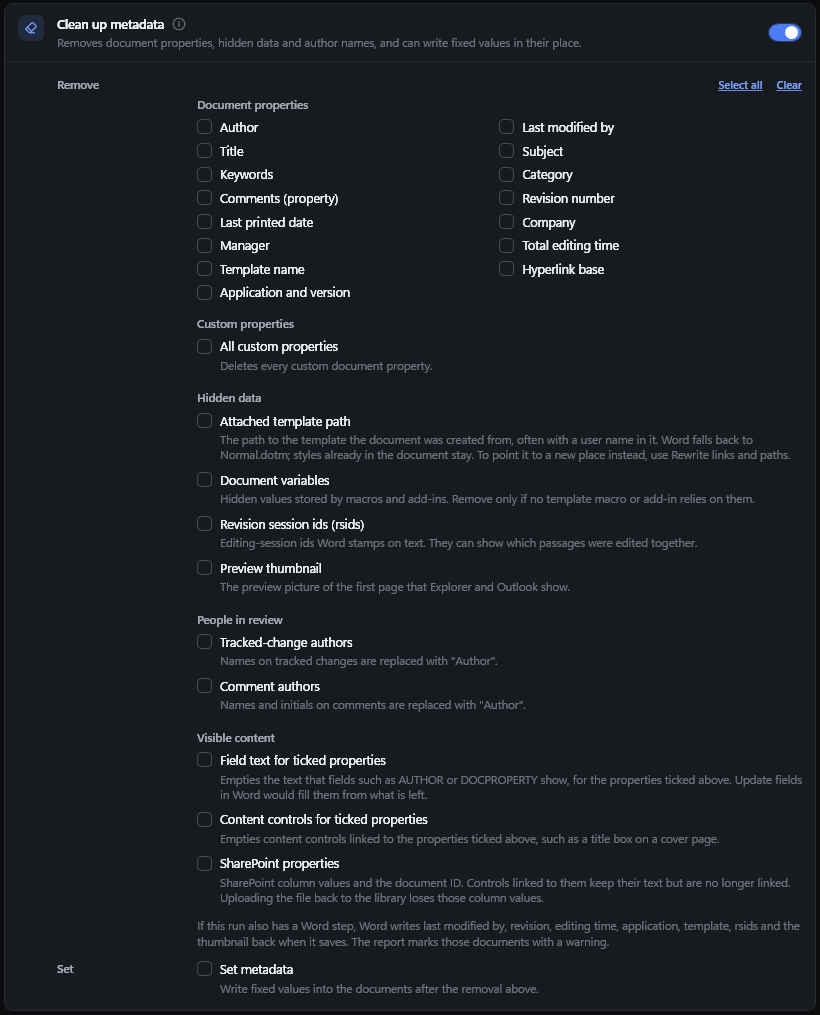
The 25 items you can remove
Tick any combination. The groups are the ones the step shows in the app.
Document properties (15)
- Author
- Last modified by
- Title
- Subject
- Keywords
- Category
- Comments (property)
- Revision number
- Last printed date
- Company
- Manager
- Total editing time
- Template name
- Hyperlink base
- Application and version
Custom properties (1)
- All custom properties
- Every custom document property is deleted.
Hidden data (4)
- Attached template path
- The path to the template the document was created from, often with a user name in it.
- Document variables
- Hidden values stored by macros and add-ins. Remove them only if no template macro or add-in relies on them.
- Revision session ids (rsids)
- Editing-session ids Microsoft Word stamps on text. They can show which passages were edited together.
- Preview thumbnail
- The picture of the first page that Windows shows as a preview.
People in review (2)
- Tracked-change authors
- Names on tracked changes are replaced with "Author".
- Comment authors
- Names and initials on comments are replaced with "Author".
Visible content (3)
- Field text for ticked properties
- Empties the text that fields such as AUTHOR or DOCPROPERTY show, for the properties ticked above.
- Content controls for ticked properties
- Empties content controls linked to those properties, such as a title box on a cover page.
- SharePoint properties
- Microsoft SharePoint library column values and the document ID. They are lost if the file is uploaded back to the library.
Nine of the properties, such as Author, Last modified by and Company, can be set to a fixed value instead of being emptied, for example your firm's name. Every document gets the same value.
How do I clean a folder before it goes to a client?
- 1
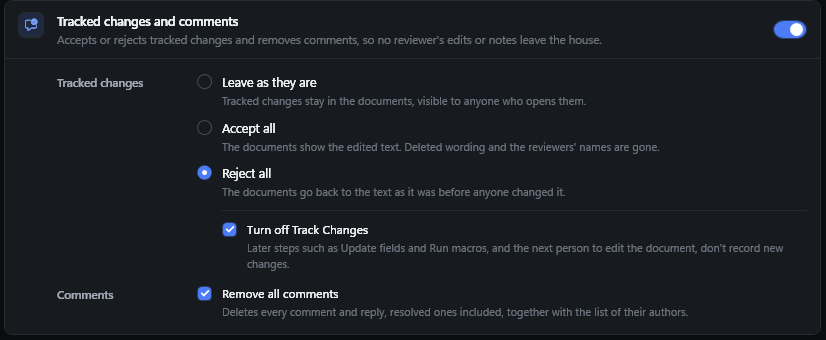
Resolve the review marks
Turn on Tracked changes and comments. Accept or reject all changes, remove all comments and replies, and turn off Track Changes, without starting Microsoft Word.
- 2
Tick the metadata to clear
Turn on Clean up metadata and tick the items above. With Tracked-change authors and Comment authors ticked, any names left on changes or comments become "Author".
- 3
Split it in two if Microsoft Word joins in
Remove hidden text and Convert to PDF use Microsoft Word, which records some information again when it saves. With either of them, run the metadata clean-up as a second job on the first job's output. Without them, one job does it all.
- 4
Save the jobs as presets
The next delivery uses the same settings. IT can also run the presets from the command line, for example on an outgoing folder every night.
- 5
Check a few results
Filter the report by Failed and Warnings. Then open three or four cleaned copies and run the Document Inspector in Microsoft Word on them before the folder goes out.
Good to know
- It isn't redaction. Names and figures in the text itself stay as they are.
- Created and modified dates, fields that show the file name, and saved building blocks such as cover pages aren't covered.
- It cleans the folder before it is sent. It isn't a filter that runs when an email goes out.
Questions about removing metadata
Are my documents uploaded anywhere?
No. BatchDocProcessor processes documents locally. The app contacts our servers only to activate, renew or release a license, to count the free trial, and, if enabled, to check for updates. Run reports store no document content.
Privacy noticeWhat happens when a document fails?
It is restored to its original state and left where it is, and the run continues. The report gives the reason and a hint. Files open elsewhere, read-only or protected by a password are reported as failed.
Does this replace Document Inspector?
For the folder, mostly. It clears the information firms usually remove before a delivery, item by item, in every document: properties, review authors, comments, tracked changes and hidden data such as the template path. It doesn't run every Document Inspector check, so use Document Inspector on a few results as a final look.
Microsoft's guide to Document InspectorCan File Explorer remove the properties of several documents at once?
Yes, some of them. Select the documents in File Explorer, open Properties, then Details, and choose Remove Properties and Personal Information. It empties Authors, Last saved by, Title, Subject, Tags, Categories, Comments, Company, Manager, Program name and Revision number in every selected file, or in copies of them.
It leaves the last printed date, the total editing time, the template name and path, the hyperlink base and all custom properties. Comments, tracked changes and the names on them stay too, and nothing lists which files it changed.
Other jobs for a whole folder
- Rebrand every document in one run
- Change the headers and footers in every document
- Find and replace text in every document
- Convert old .doc files to .docx
- Give each document its own values from a spreadsheet
- Update property fields without Microsoft Word
- Replace a logo in every document
- Update links and paths after a server move
- All use cases
Try it on a copy of your last delivery folder.
Your originals stay unchanged by default, and the report shows what happened to each file.
- Every feature, for 7 days or 50 documents, whichever comes first.
- No license key, account or card needed. Needs an internet connection.
- When it ends, the editing steps lock. Nothing is charged or renewed.
- Processed on your PC. Your documents aren’t uploaded.