

Find and replace text in every Microsoft Word document in a folder
BatchDocProcessor replaces text in every Microsoft Word document in a folder from one ordered list of rules, on your Windows PC. It finds the text even where part of it is bold or in another color, and searches headers, footers, notes, comments, charts and SmartArt when you tick them, a chart's data included. Copies are edited by default, and the report shows how often each rule replaced something in each file.
Updated
In Microsoft Word, with a macro, or in one run.
A new company name, a corrected clause, last year's date in every template: the change is the same in each file, and the files are many.
In Microsoft Word
- Open a document, press Ctrl+H, run Replace All, save and close. Then the next one.
- Replace All works on the open document only. Repeat it for each change in each file.
- Nothing records which documents changed, or how often.
A macro
- Someone has to write it, test it and keep it working.
- To reach headers, footers, footnotes, comments and charts, it has to visit each part of each document separately.
- Putting back a document it breaks, and a record for each file, are extra work.
BatchDocProcessor
- Write the rules once, in order, and save them with the job.
- Finds text split by formatting or over a line break, and in comments, SmartArt and charts, the data behind a chart included.
- Edits copies by default. A document that can't be edited safely is restored, and the report counts each rule's replacements.
How do I replace the same text in every document in a folder?
- 1
Write one rule per change
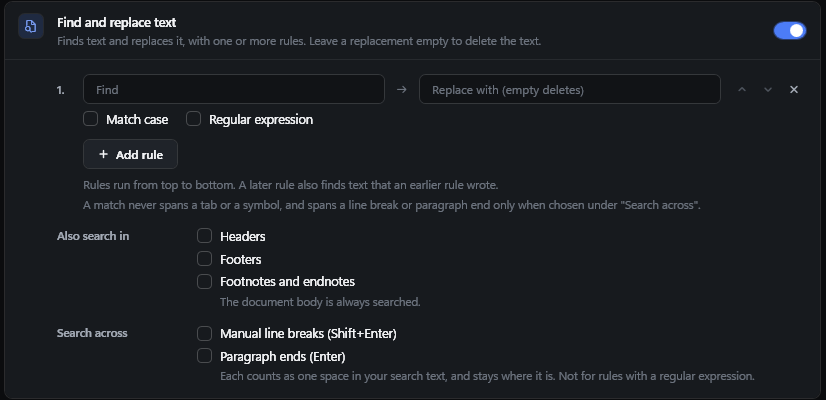
Each rule is a search text and its replacement. An empty replacement deletes the text. Put the long form before the short one: "Example & Rivera, Inc." first, then "Example & Rivera". A later rule also finds text an earlier rule wrote.
- 2
Choose where to search
The body is always searched, tables and text boxes included. Tick Headers, Footers, Foot- and endnotes, Comments, Charts or SmartArt under "Also search in" to search those too. A chart or SmartArt graphic in a header, footer, note or comment also needs that box ticked.
- 3
Allow for line breaks
If a name is sometimes split over two lines, tick Manual line breaks, Paragraph ends or both under "Search across". The break then counts as one space in your search text, and stays where it is.
- 4
Test on a few copies
Copy three or four typical documents into a test folder, run the job, and open the results in Microsoft Word.
- 5
Run the folder, then read the report
Each document gets a line. Its details say how often each rule replaced something: "rule 2 3" means rule 2 made three replacements. A document where nothing was found still counts as Succeeded.
What a rule finds, and what it doesn't
Microsoft Word stores a sentence in pieces wherever its formatting changes. A rule looks at the text as you read it.
- Text split by formatting
- Found, even if one word is bold or in another color. The replacement takes the formatting of the first character it replaces.
- Over a line break
- Found with "Search across" ticked. Each line keeps its formatting, and the replacement is shared out between the lines. A tab, a page break, an empty paragraph, a numbered paragraph or the edge of a table cell always ends a match.
- Upper and lower case
- With Match case off, "it" also finds "IT" and "It", and each is replaced by exactly what you typed.
- Regular expressions
- Tick Regular expression and the search text becomes a .NET pattern. In the replacement, $1 inserts the first capture group and $$ a dollar sign. An invalid pattern stops the run before any document is changed. A pattern that takes too long fails that document only.
- Whole words
- There is no whole-word option. Use a regular expression with \b, such as
\bcolour\b. - Tracked changes
- Replacements are made directly and don't show up as tracked changes, even where Track Changes is on. Text that Track Changes shows as deleted isn't searched.
- Fields
- The text a field shows can be replaced, but Microsoft Word puts its own value back the next time the field is updated. To change where a link points, use Rewrite links and paths.
- In a chart, its text and its data
- In every chart type, waterfall, sunburst, treemap and funnel included, a rule replaces the titles, axis titles, data labels and text boxes on the chart, and every text cell of the chart's data: what Edit Data shows, legend entries and category names included. Microsoft Word shows the new text at once, and Edit Data opens without a repair notice. Numbers, dates, formulas and sheet names are never changed.
- What stays in a chart
- Values a formula calculates, the data of a pivot chart, and data in a linked workbook outside the document. The report shows a warning for them; change those in Microsoft Word with Edit Data.
- Charts and SmartArt over a break
- A search text never runs across a paragraph end there, even with "Paragraph ends" ticked. Manual line breaks work as in the text, except inside a cell of a chart's data.
- Never searched
- Embedded objects.
Good to know
- "Paragraph ends" joins a heading with the paragraph below it. A rule "Invoice 2024" → "Invoice 2025" then also changes a heading "Invoice" followed by a paragraph that starts with "2024". Check a few documents.
- Regular expressions never run across a break, even with "Search across" ticked.
- Two rules with the same search text and settings are refused before the run: the second one would only find what the first one wrote.
- In the recommended run order, Tracked changes and comments runs first, so text that "Reject all" brings back is searched. Update fields runs after the text step and can undo a replaced date or table-of-contents entry.
- The step edits the files directly. Microsoft Word doesn't need to be installed for it.
Questions about find and replace
Our company name is split over two lines in some documents.
In Find and replace text, use "Search across": tick "Manual line breaks", "Paragraph ends" or both, and a rule finds the name on one line or two. It works for rules without a regular expression. Check a few documents first.
Does Find and replace text change the text in charts?
Yes, with Charts ticked under "Also search in". In every chart type, waterfall, sunburst, treemap and funnel included, it replaces the titles, axis titles, data labels and text boxes, and every text cell of the chart's data, legend entries and category names included. Microsoft Word shows the new text at once, and Edit Data opens without a repair notice.
Numbers, dates, formulas and sheet names are never changed. Values a formula calculates, pivot charts and linked workbooks stay as they are, and the report shows a warning.
Text in a header or footer wasn't replaced.
Find and replace text searches headers and footers only when you select them under "Also search in".
Find and replace text doesn't find text that's clearly there.
Check these, in order:
- The text is split by a tab, an inserted symbol, or a break that "Search across" doesn't cover.
- It's in a comment, a chart or SmartArt that isn't ticked under "Also search in", or it's text shown as deleted.
- "Match case" is selected.
- An earlier rule has already changed the text.
A replaced date or number came back.
It's the result of a field, which shows its own value again when updated. Change the field in the template instead.
Are my documents uploaded anywhere?
No. BatchDocProcessor processes documents locally. The app contacts our servers only to activate, renew or release a license, to count the free trial, and, if enabled, to check for updates. Run reports store no document content.
Privacy noticeCan I use the wildcards from Microsoft Word?
No. A rule is either plain text or a .NET regular expression. The wildcard characters in Microsoft Word, such as < and > for the start and end of a word, aren't recognized. A regular expression does the same jobs: \b marks a word boundary, and \d a digit.
Microsoft's regular expression quick referenceDoes the replacement keep the formatting?
It takes the formatting of the first character it replaces. If "Example & Rivera" is bold and only the first letter is red, the new name is bold and red. To change a font everywhere, use Change font in the same job.
Can one job make several replacements?
Yes. Add as many rules as you need. They run from top to bottom in every document, and the order can be changed with the arrows beside each rule. Save the job as a preset to run the same rules next time.
Other jobs for a whole folder
- Rebrand every document in one run
- Change the headers and footers in every document
- Convert old .doc files to .docx
- Give each document its own values from a spreadsheet
- Update property fields without Microsoft Word
- Replace a logo in every document
- Remove metadata, comments and tracked changes
- Update links and paths after a server move
- All use cases
Try your rules on ten of your own documents.
Your originals stay unchanged by default, and the report shows what happened to each file.
- Every feature, for 7 days or 50 documents, whichever comes first.
- No license key, account or card needed. Needs an internet connection.
- When it ends, the editing steps lock. Nothing is charged or renewed.
- Processed on your PC. Your documents aren’t uploaded.